

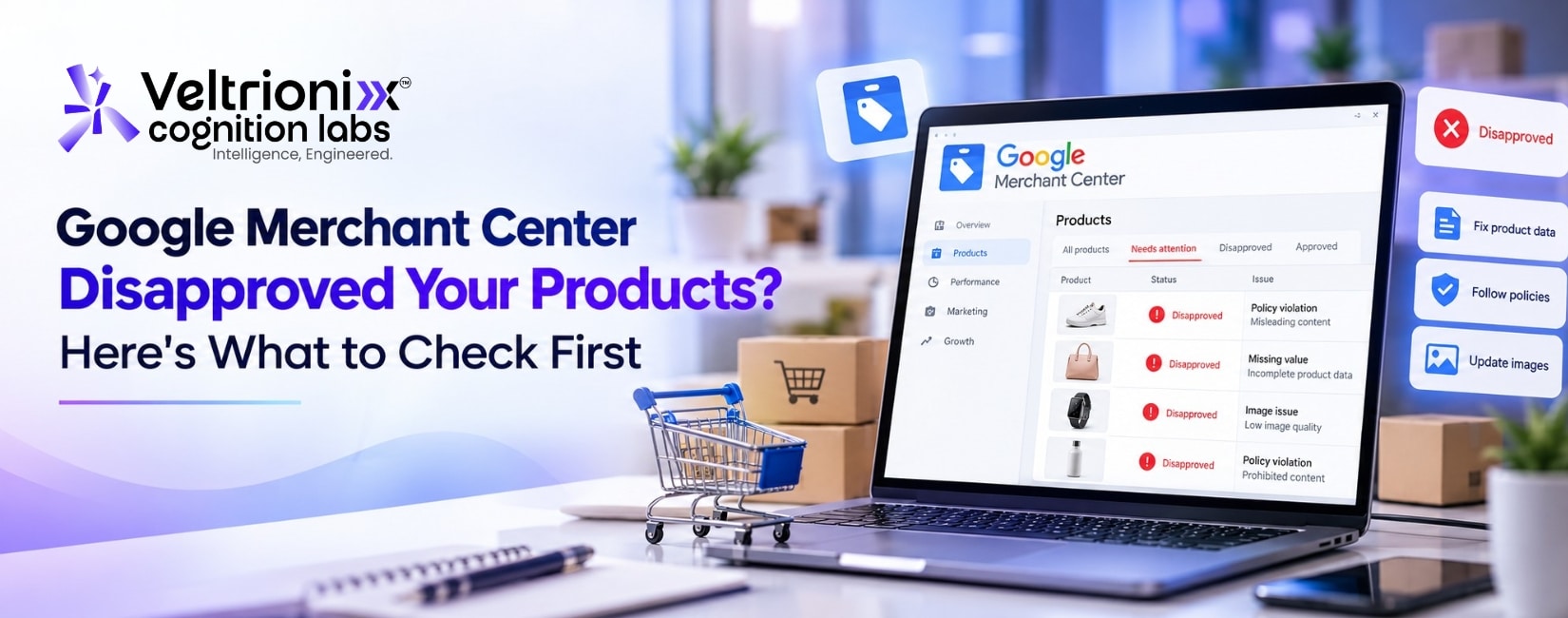
Seeing products marked “Disapproved” in Google Merchant Center can be frustrating. Many disapprovals, however, point to a specific issue you can fix.
Start by opening Merchant Center and checking the exact issue under Products → Needs attention. Don’t change your entire feed at random. Identify the affected products, compare Merchant Center data with your website, correct the cause, and follow Google’s review process where required.
1. Read the Exact Disapproval Reason
Different issues need different fixes: a price mismatch, broken landing page, or policy problem.
In Merchant Center, open Products → Needs attention and review the issue description, affected items, and recommended action. For many affected products, download the report and group items by issue to find the root cause.
A disapproved product generally cannot show in the relevant Google ads or free listings until the issue is resolved. Some warnings may limit performance before becoming disapprovals if left unresolved.
2. Check Price and Availability
Price and stock mismatches are common reasons for disapproval. The price and availability in your product data should match what customers see on the product page.
Check that:
- Sale prices and promotions are updated in both the website and feed.
- The currency matches the country you target.
- Stock status matches the product page.
- Each size, colour, or other variant shows the correct price and availability.
- Product structured data does not contain outdated values.
For example, if Merchant Center says a product costs ₹999 but the page shows ₹1,099, Google may disapprove it. If the website updates before the feed, the mismatch can return. Align feed updates with store changes and consider automatic item updates where appropriate.
For detailed steps, use Google’s official guide to Merchant Center product issues.
3. Make Sure the Product Page Works
A correctly formatted feed won’t help if the landing page is broken. Open each affected product URL in a private browser window and check that:
- The page loads without an error.
- The link opens the exact product, not the homepage or a generic category.
- The product can be purchased in the targeted country.
- Price, variants, and availability are visible.
- Google can crawl the page and its images.
Check mobile, redirects, server errors, blocked crawlers, and missing pages—especially after a redesign or URL change.
4. Improve Product Data and Identifiers
Incomplete product information can make it harder for Google to understand what you sell. Review titles, descriptions, brand, category, condition, and identifiers.
Use clear titles that describe the product and its important attributes. Avoid promotional phrases and repeated keywords. Where applicable, provide identifiers such as GTIN or MPN accurately; never invent an identifier to fill a blank field.
Make sure each variant has its own accurate details. Product images should clearly show the item, and the image URL must work. Avoid placeholder images or pictures that represent a different product.
5. Review Website Policies and Business Information
Not every disapproval is a feed error. Google may flag unclear business details, missing policies, misleading claims, or an unreliable shopping experience.
Make contact information, shipping details, returns and refunds, and applicable terms easy to find. Keep your business identity consistent across the website and Merchant Center. Check product descriptions for claims that are inaccurate or unsupported. If a product belongs to a restricted category, review the relevant policy instead of trying to hide the issue through wording.
6. Fix the Source, Not Just the Symptom
If the same error affects many products, look for a shared cause. A feed app may map the wrong field, a Shopify integration may send outdated stock, or structured data may display an old price.
Review the flow:
Store Catalogue → Feed or Connector → Merchant Center → Product Landing Page
Choose a reliable source for product information and define how updates move between systems. Test a small group of products before making broad changes, and record the issue, fix, and review result.
Technical support can help here. Veltrionixx web development may help with templates, URLs, structured data, or performance. Veltrionixx IT solutions can support integration and data-flow reviews. Choose Veltrionixx services based on the actual issue. A Veltrionixx software company approach should fix the source—not hide the warning.
7. Request a Review After Fixing the Issue
Once the issue is corrected on both the website and product data, return to Merchant Center and follow the review or appeal option shown for that issue. Avoid requesting reviews before the fix is live, or the same issue may be detected again.
Allow time for Google to recrawl the page. If the product remains disapproved, check the error again and follow its specific instructions.
Frequently Asked Questions
Why were my products disapproved?
Common reasons include price or stock mismatches, broken pages, incomplete data, incorrect identifiers, and policy problems. Check Merchant Center for the exact reason.
Will fixing the feed automatically approve a product?
Not always immediately. Some items are checked again after updates; others require a review or appeal. Fix the website and feed first.
Can a website redesign cause disapprovals?
Yes. Changed URLs, broken redirects, altered product data, or delayed stock updates can make the information Google sees differ from the submitted feed.
Final Takeaway
When Google Merchant Center disapproves products, start with the exact issue—not guesswork. Check price and availability, test product URLs, improve product data, review store policies, and trace recurring errors back to the system creating them.
Your feed and website need to tell the same story. Strong technical foundations, accurate product information, and well-planned Veltrionixx digital marketing can help businesses